From your first keystroke to confident typing
Ten Typing Fingers combines focused practice with visual guidance and clear results. Know what to work on before, during, and after each session.
1. Choose a lesson
Start with the home row and expand your practice one step at a time. Each lesson card shows the keys it covers and your training progress, so you can find an exercise that fits your next goal.
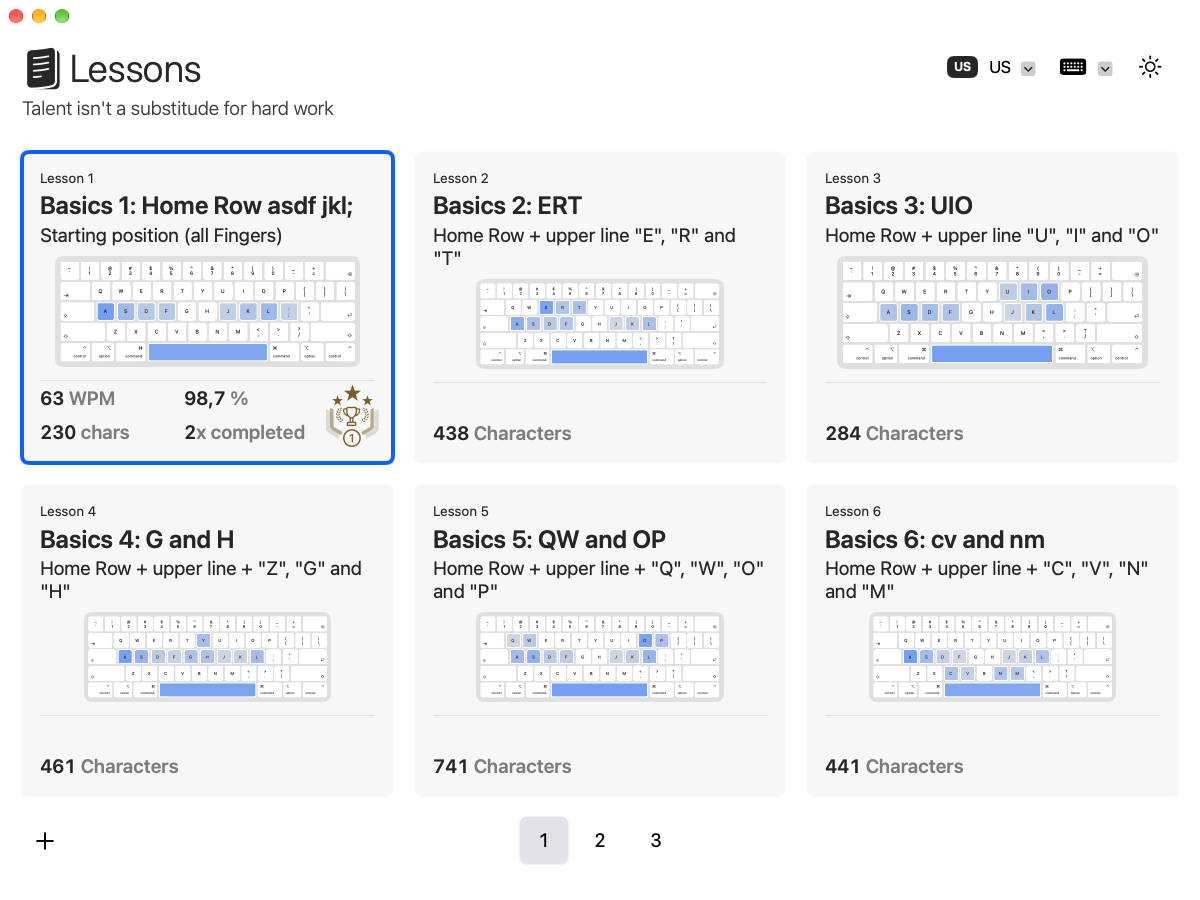
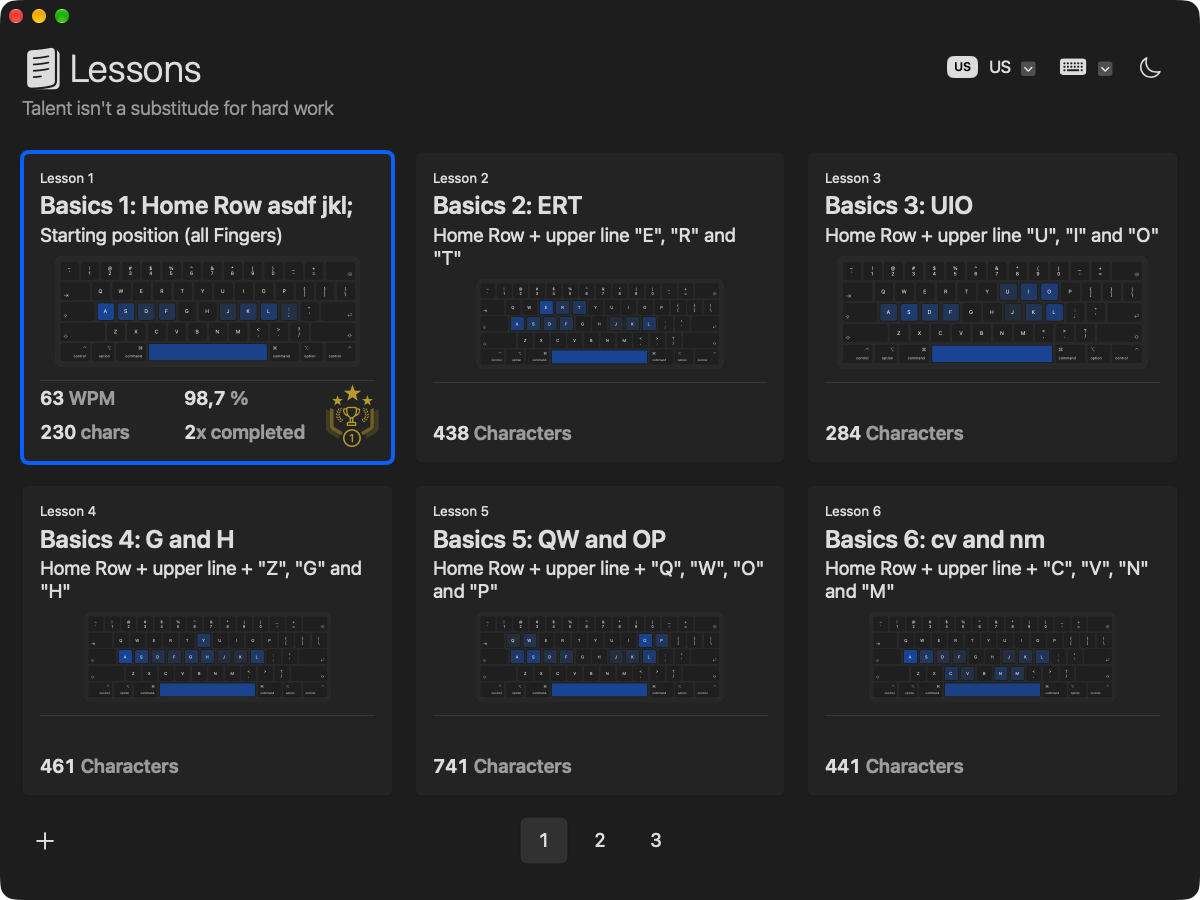
Want to practise your own text? Create a lesson with content that matters to you.
2. Practise with guidance
Focus on the practice text. The virtual keyboard helps you find the next key and the finger to use.
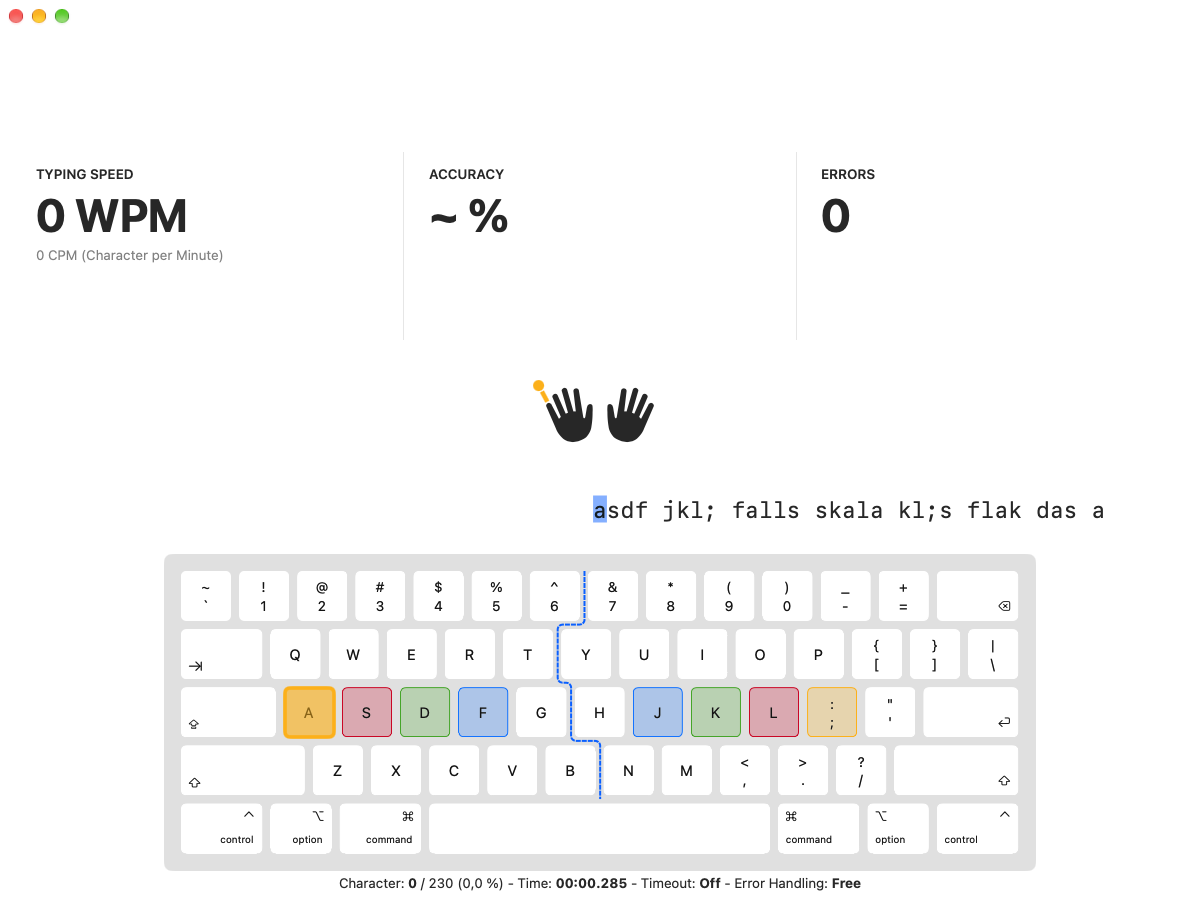
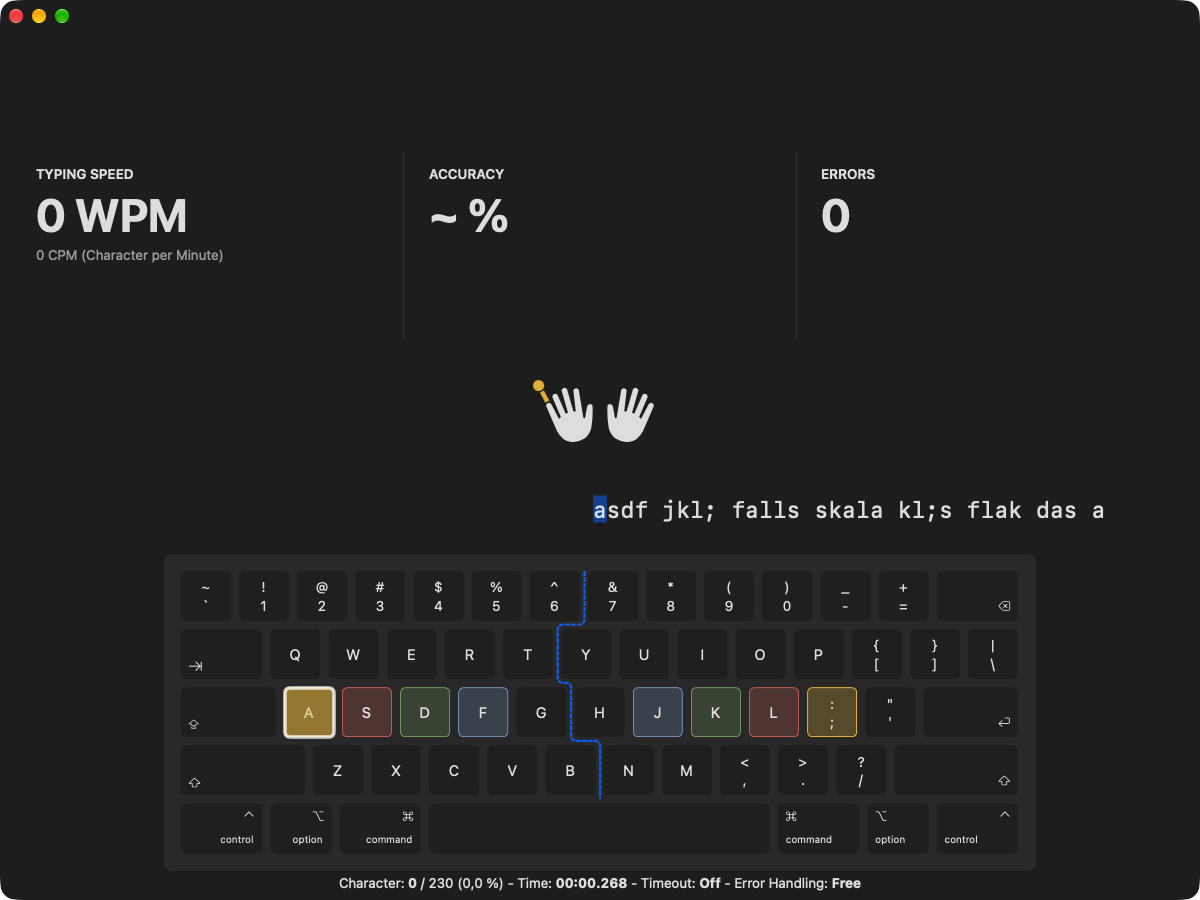
- Next key: See which key to press on the virtual keyboard.
- Finger zones: Use coloured areas to learn finger placement, either always visible or only for the current zone.
- Home row: Display hints for your fingers’ starting positions.
- Your preferences: Turn hints on or off in the lesson menu as your confidence grows.
3. Understand your results
After each completed exercise, review your speed, accuracy, errors, and score. The keyboard error distribution helps you spot difficult keys, while the timeline shows how your performance changed during the session.
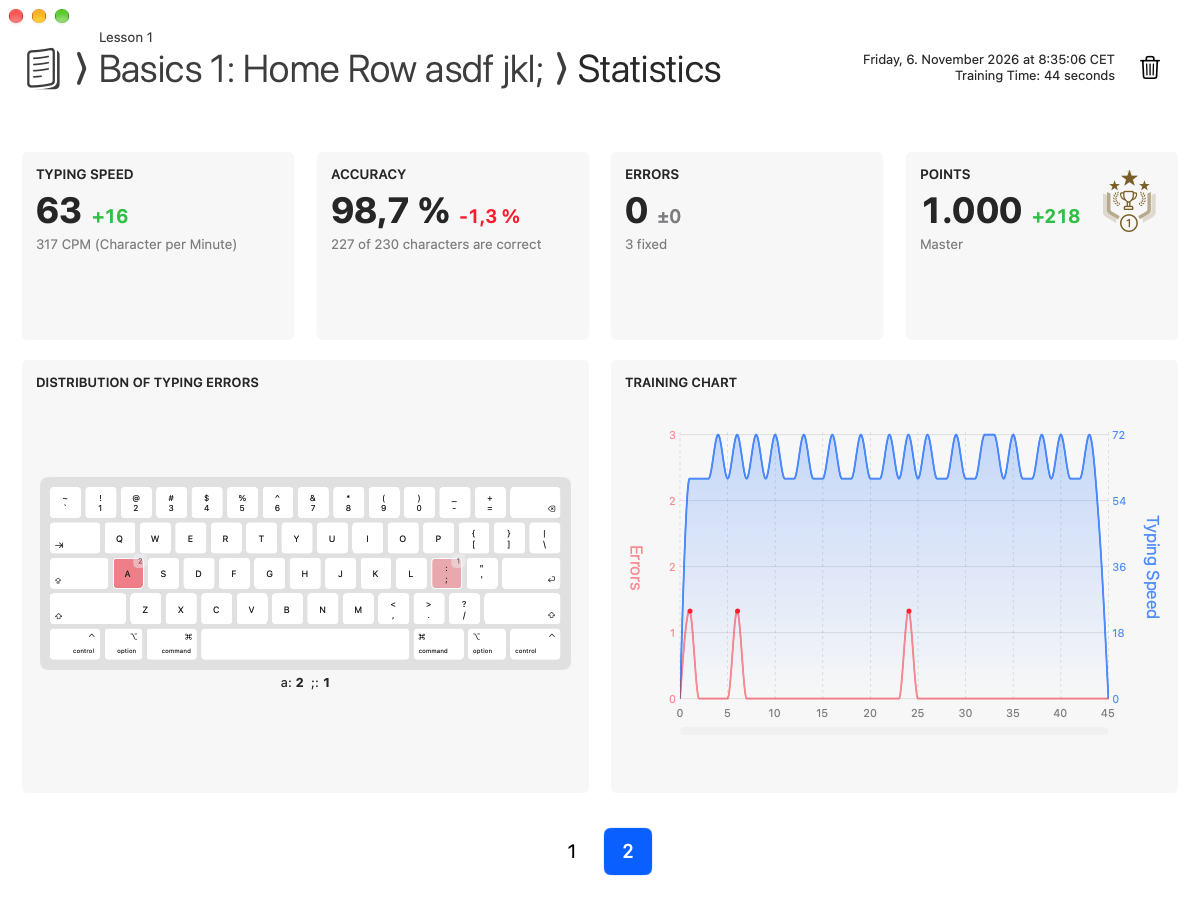
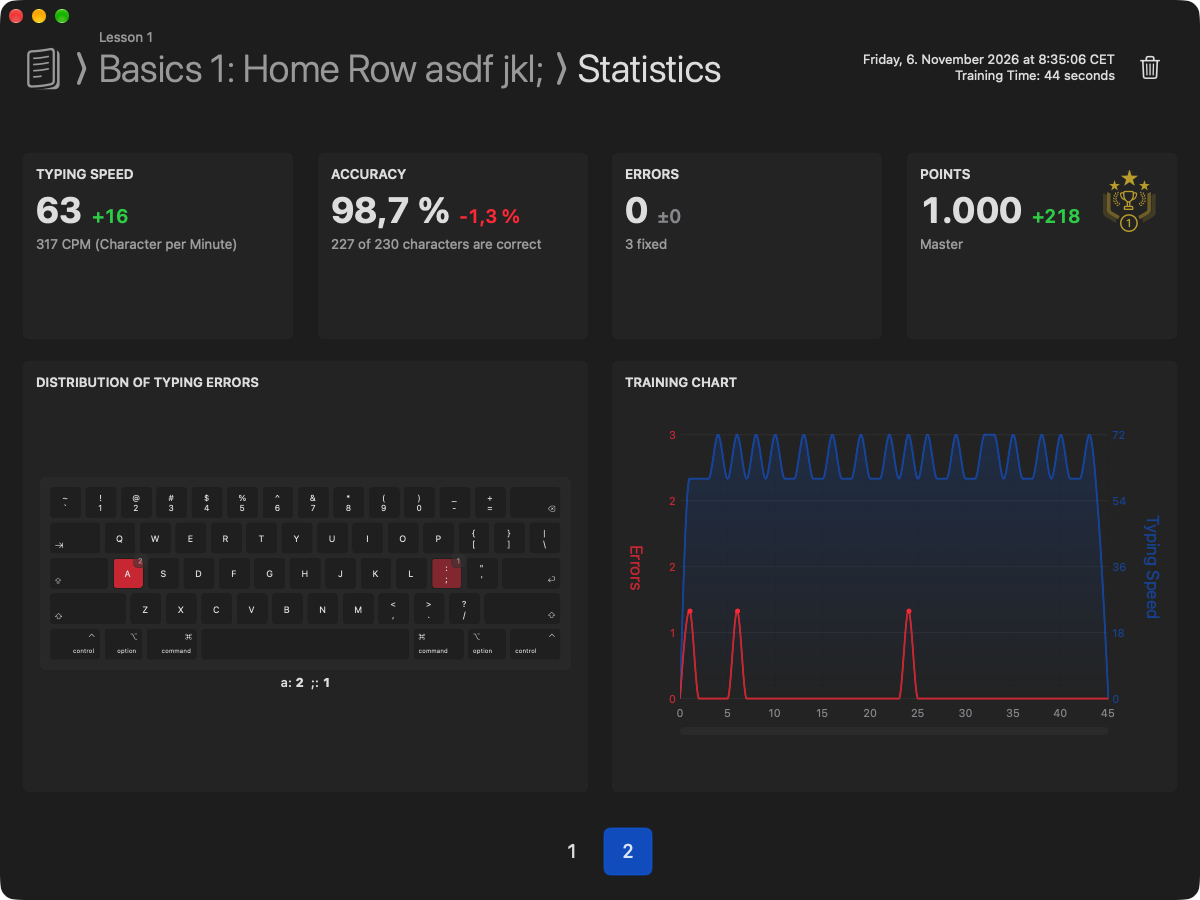
Repeat the lesson to work on those keys, or return to the overview to choose your next exercise.
Stay comfortable and focused
Navigate with the keyboard. Use the arrow keys, Tab, Return, and Escape to move through the app between exercises. Mouse and trackpad controls are available too.
Make yourself comfortable. Choose a light or dark appearance and adjust text size in the View menu.
Practise locally, without ads. Ten Typing Fingers is a native macOS app. Your training data stays on your Mac, with no account to create. Read about app privacy.
Start your next practice session
For macOS 14 or later. Installation and updates are handled by the Mac App Store.